



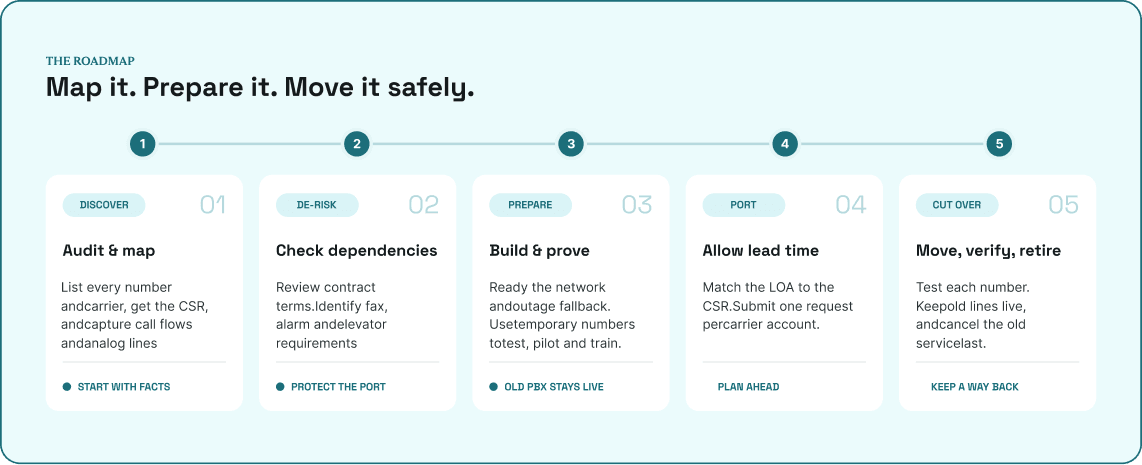
To migrate from a legacy PBX to a cloud phone system, audit your numbers and call flows, check your old contract, and sort out analog lines and your network. Then build and test the new system on temporary numbers, port your numbers, keep the old system live through cutover, and cancel the old service last.
The number port takes the longest, because Microsoft recommends a port date at least three weeks after you submit. This guide covers why to move and what changes in the cloud, then walks through each step in order, from the first audit to switching off the old PBX.
Key takeaways
- Request a Customer Service Record (CSR) from each carrier first, because your port request is checked against it.
- Read your old contract before giving notice, and keep every old line active until all your numbers have ported.
- List every fax, alarm and elevator line, and test each one on the new system before the port.
- Build and test on temporary numbers, then port with a target date at least 15 business days out.
- Turn off SIP ALG on your router unless your provider says otherwise, and decide where calls go if the internet fails.
What is a legacy PBX and a cloud phone system?
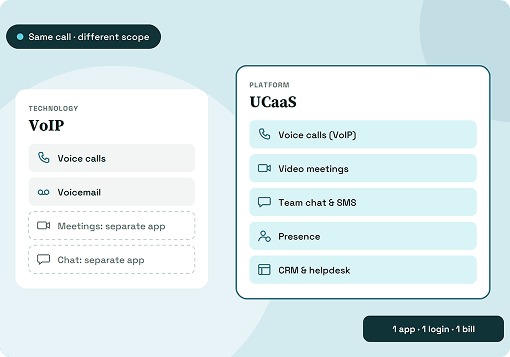
A PBX (private branch exchange) is the system that routes calls inside a business and connects them to outside lines. A legacy PBX is hardware in your building, a server or cabinet wired to desk phones and to copper or PRI lines from a carrier.
A cloud phone system does the same job from the provider's data centers. Calls travel over the internet, and staff answer on desk phones, in a browser or on mobile.
Why move from a PBX to the cloud
There can be multiple triggers to make the move.
Maybe because of a PBX your vendor no longer supports, a staff who need to take calls away from the office, a new site, or a carrier retiring the copper lines your PBX uses. Any one of them is a reason to start planning.
Carriers must give 90 days' notice of a planned copper retirement to interconnecting carriers and 911 providers (47 CFR §51.333). Under an FCC order effective May 20, 2026, applications to stop offering legacy voice service are granted automatically after 31 days, and interconnected VoIP counts as a replacement. Ask your carrier whether your lines are affected.
Benefits of a cloud phone system
A cloud phone system moves the hardware, updates and capacity planning from your office to the provider. These are the differences your team will notice day to day.
- No PBX to maintain: The provider runs and updates the system, so there's no on-site hardware, spare parts or maintenance contract.
- Changes without a technician: Admins add users, change business hours and edit call flows from a browser.
- Calls from anywhere: Staff answer in a browser or on mobile wherever they have internet, using the same business number.
- One system for every site: A new office joins the same system and admin panel instead of getting its own PBX.
- Less exposure to office outages: The system runs in the provider's data centers, so a power cut at the office doesn't take it down, and staff can keep answering on mobile.
- A predictable bill: A monthly fee per user replaces upfront hardware and maintenance costs.
The trade-off is that office phones and browsers depend on your internet connection and power. The FCC notes that VoIP service may not work during a power outage or when the internet connection fails, which is why the network step below matters.
Audit what the old system really does
The audit tells you what the new system has to replace and what your port request has to match. Do it before you contact the old carrier or build anything new.
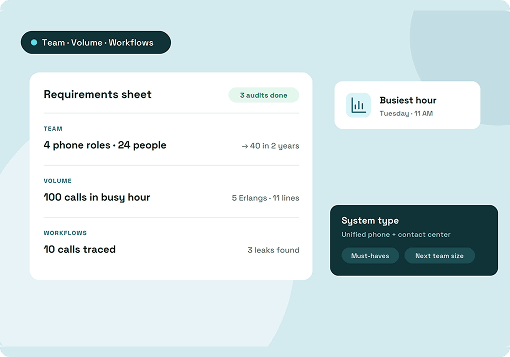
List every main line, direct line, toll-free number, fax line, alarm line and elevator line, and note which carrier account each one sits on. Then ask each carrier for its Customer Service Record (CSR), since your port request gets checked against it.
Next, call your main numbers during hours, after hours and on a holiday, and write down what callers hear, including IVR options, ring groups and where unanswered calls go.
While the PBX still runs, export the greetings, IVR prompts, voicemails and recordings you need to keep. Note the make and model of your desk phones too, and ask the new provider whether they're compatible.
Check the old contract before you give notice
Old contracts came up repeatedly in the migration threads and customer reviews we read. Businesses described automatic renewals, termination fees after the move, and bills that kept arriving after the numbers had left.
Before you sign anything new, check:
- The term end date and the auto-renewal notice window
- Early termination fees
- Leased equipment that has to go back
- Fax or alarm lines on a separate contract
Your old provider can't refuse to port your number because you owe a balance or a termination fee, though you may still have to pay it (FCC). Keep every old service active until all your numbers have ported.
Find the analog lines in the building
Fax machines, alarm panels and elevator phones run on analog lines, and they may not work on a cloud system as they are. The FCC requirement that replacement services stay compatible with alarm and medical devices ended in 2025.
Fax problems came up repeatedly in the threads and reviews we read, with faxes failing and fax numbers not moving. The two main options are an online fax service or an analog telephone adapter (ATA) that supports T.38, the ITU standard for fax over IP. Confirm the new provider supports fax on the ported number before you port it.
For alarm panels, elevator phones, door entry and card terminals, ask each vendor what connection the device needs and whether it works over VoIP. If it doesn't, ask what they offer instead, such as a cellular communicator.
Get the network ready for voice
Call quality on a cloud system depends on the connection and router in your office. Check both before the pilot, so problems show up in testing rather than on live calls.
Turn off SIP ALG on every router, including any your internet provider supplied, unless your phone provider says otherwise. Turn on quality of service (QoS) so voice traffic goes first, and wire fixed desks where you can. Then decide where calls go if the office goes offline, such as forwarding to mobiles.
Build and test the new system before you port
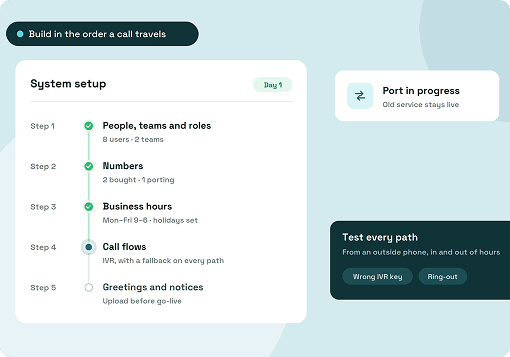
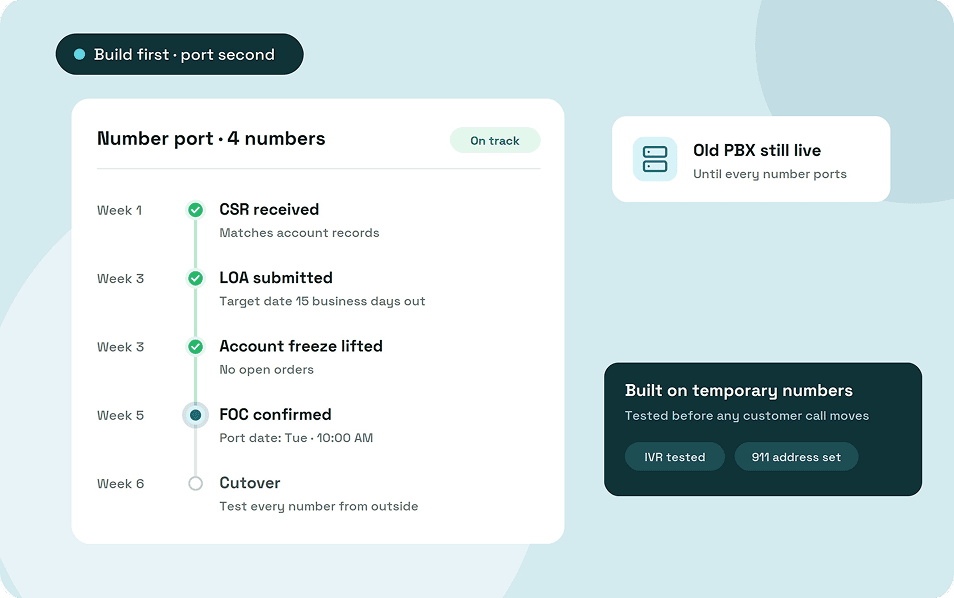
Build the full system on temporary numbers while the old PBX keeps taking customer calls. That way you find and fix problems before any customer call depends on the new setup.
1. Set up users, numbers and hours
Add your users and group them into teams by which calls they answer. Get one or two temporary numbers to build and test with, and set business hours and holidays for each number.
2. Rebuild call flows and greetings
Rebuild IVR menus, ring groups and a fallback for every unanswered call from your audit, rather than copying the old programming line by line. Then upload the greetings and prompts you exported, or record new ones.
3. Set up caller ID and emergency calling
Register your business name (CNAM) and confirm the provider signs your calls under STIR/SHAKEN, which lets receiving carriers verify your caller ID. Register an emergency address for every user, including remote staff.
Under Kari's Law, users must be able to dial 911 without a prefix, and the system must notify a central point on site. RAY BAUM'S Act requires 911 calls to carry a dispatchable location, such as a street address with a floor or room.
4. Test, pilot, and train
Test from an outside phone: call in hours and after hours, press every IVR option, let a call ring out, leave a voicemail, and call a mobile to check caller ID. Then have one team use the new system for internal and outbound calls for a week, and fix what they report.
Port your numbers
Porting came up repeatedly in the threads and reviews we read, with ports running for weeks, requests rejected several times, and old carriers slow to release numbers.
1. Fill in the LOA from the CSR
Copy the account holder name, account number, billing telephone number (BTN), PIN, service address and authorized signer onto the Letter of Authorization (LOA) exactly as they appear on the CSR. A mismatch with the old carrier's records can get the request rejected.
2. Clear blockers on the old account
Ask the carrier to lift any account freeze, which Microsoft says can take one to three weeks. Have hunt groups or distinctive ring removed from the lines, and wait for any open orders to close.
3. Submit one request per carrier account
Carriers process port requests for the same account one at a time and reject overlapping ones, so submit the next batch only after the last one completes. If you're porting only some numbers and the BTN is one of them, name a new BTN from the numbers that stay.
4. Set a realistic target date
FCC rules require simple ports, which generally involve one line, to complete in one business day. Microsoft says larger ports to Teams typically take 7–14 days and up to 30, and it recommends a target date at least 15 business days after you submit.
5. Wait for the firm order commitment
The old carrier confirms the port date with a firm order commitment (FOC). Add that date and time to your cutover plan.
6. Handle rejections and stalls
If the port is rejected, get the exact reason from the old carrier, fix it and resubmit, knowing the carrier's response window restarts with each new request. If the carrier stalls, ask for the CSR in writing and escalate, since FCC rules say a provider can't refuse to port your number.
Cut over with a way back
Cutover is when your ported numbers start ringing on the new system. Prepare in the week before, then work through a short checklist on the day.
In the week before, freeze changes on both systems and confirm the port window with both carriers, since Microsoft says providers process port requests during business hours only. Write down where calls go if something breaks, such as forwarding to mobiles, and who makes that decision. Ask the new provider what happens if the port fails.
On cutover day:
- Keep the old PBX and lines running.
- Call each ported number from an outside phone once the port completes.
- Make outbound calls and check the caller ID that shows.
- Send a test fax and ask the alarm company for a test signal.
- Move staff onto the new system and have one person watch live calls.
The first 30 days, then decommission
The first month shows what testing missed, so review calls at day one, week one and month one. Look for missed and dropped calls, unreturned voicemails and callers stuck in the IVR.
Once everything checks out, confirm every number has been ported, including fax and toll-free, then cancel leftover lines and check the next two bills. Return leased equipment and keep any call records you're required to retain. Wipe the old PBX's storage before disposal, since voicemails and recordings can hold customer data.
How long a PBX migration takes
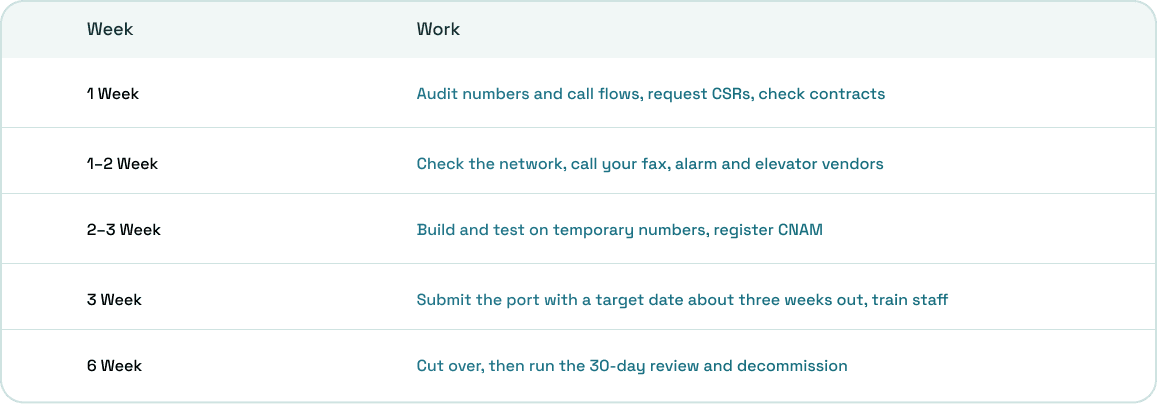
This sample plan covers a single site and reaches a cutover in about six weeks. Larger and multi-site moves take longer.
How ArcSIP handles the move
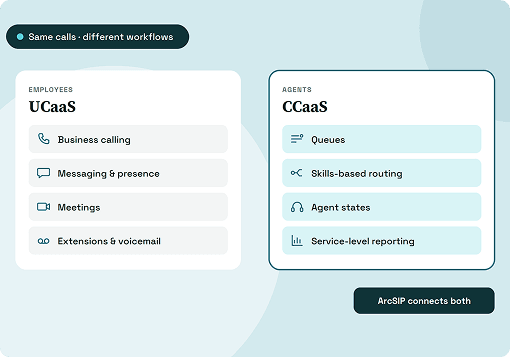
ArcSIP lets you build first and port second. Buy numbers instantly and set up ring to agent, ring to team, multi-level IVR, business hours and special dates before a single number moves.
Upload your existing greetings, IVR prompts and hold music to the audio library. Bring Your Own Number checks portability for a list or CSV of numbers, takes your LOA, account details and PIN, and tracks each request by ID. Porting and CNAM registration are add-ons, and calls are signed under STIR/SHAKEN through our carrier.
After cutover, Call Journey shows every step a call took, including transfers and fallbacks. ArcSIP Unlimited costs $29 per user per month, with a three-user minimum, and you can start a 7-day trial with no credit card.
Plan the move around the old system
Three of the steps sit with your current setup rather than the new one: the contract check, the analog lines and the port paperwork. The port has the longest lead time, so start it early.
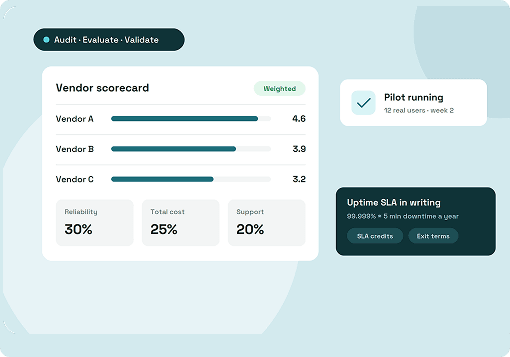
If you're still choosing a provider, our guide on how to choose a business phone system covers what to compare.