



A new hire can make a test call and still miss the first customer who tries to reach them. Their account is active and the headset works, but the shared number may still ring another team, or their coverage hasn’t started yet.
Which is not ideal if you take your business seriously.
When you set up VoIP for remote workers, check the calls they’ll actually handle. They should be able to answer the line they’re covering, call back with the right business number, and know who can help when a request needs to go to another person or shift.
With ArcSIP Business Phone System, an employee can join the team that already answers your business number and take calls from a supported browser. Have a coworker call from outside the business during a practice session. That gives the employee a chance to work through the call, and the shift lead a way to see what customers will experience.
Key Takeaways
- Before sending the invite, agree on which number the employee will answer, when they’ll cover it, and what number customers should see on callbacks.
- If you use ArcSIP, add the new employee to the team that already handles the shared line. Verify access by calling that number from outside the business.
- Run incoming and outgoing tests on the employee’s usual computer, headset, and network. Check the ring, two-way audio, and displayed caller ID.
- Practice a transfer and an unanswered call with the coworkers who’ll help on shift. Make sure the person taking over can find the customer’s request and any promise already made.
- If a test fails, agree on who covers that part of the job and when the employee will repeat the check.
What Remote VoIP Onboarding Looks Like With a Platform Like ArcSIP
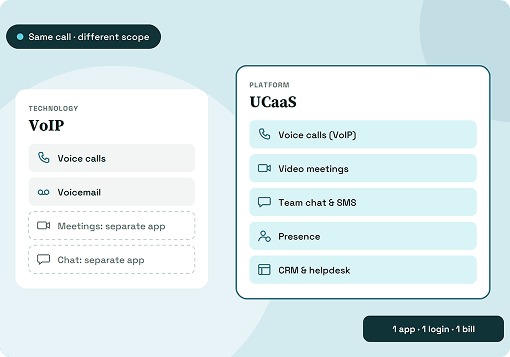
VoIP, or voice over Internet Protocol, carries calls over an IP network. A business phone system uses it to connect employees to company numbers from supported devices, including computers they use outside the office.
For a team with an existing line, the manager decides which calls the employee should handle, the admin sets up access, and the employee practices with a coworker. In ArcSIP’s remote workspace, that can mean joining the team that covers a shared number, answering through a browser, and using a warm transfer to bring in a colleague.
This guide assumes your number and call flow are already in place. If the business still needs to choose numbers, set its hours, or move from another provider, the business phone system installation guide covers that work.
Plan the Employee’s First Shift Before Sending the Invite
Start with a few calls the employee is likely to handle. A scheduling specialist may need the shared line for appointment requests. An account manager may need a direct number for ongoing customer conversations.
A supervisor might take escalations and review messages the team hasn’t handled yet. Give the employee and the admin the same short set of instructions.
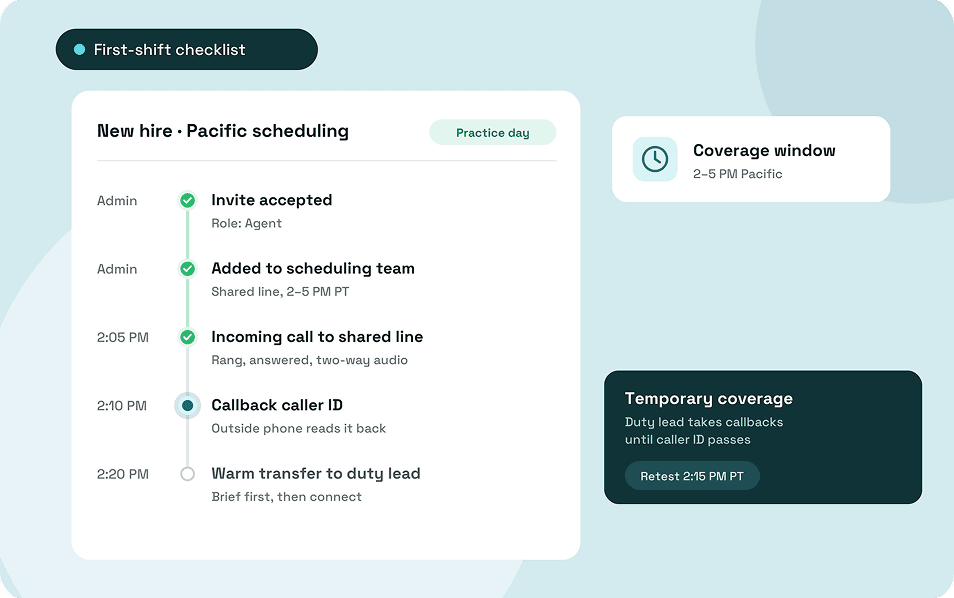
Here’s an example for the Pacific scheduling specialist.
- Incoming calls: Cover the shared scheduling number from 2 to 5 p.m. Pacific.
- Outgoing calls: Use the approved business number for callbacks. Ask a coworker to confirm what their phone displays.
- Transfers: Brief the duty lead before connecting a caller who needs help with a booking exception.
- Follow-up: Record what the customer asked for, what’s already been checked, and the promised response time in the scheduling ticket.
- Backup: If calling stops working, contact the duty lead through the team’s approved backup channel so someone else can cover the line.
Send the note with the sign-in instructions and the time of the practice call. Name someone the employee can ask about customer work and someone who can fix account or device problems. Having both contacts in the same place saves a search when they’re in the middle of a call.
Give the Employee Access to the Right Calls
Once the employee accepts the invitation, check their role and number assignment. For a shared line, add them to the team that already answers it. If they also need a direct number, set it up separately and tell them which types of calls to expect on each line.
Check the employee’s access against the work you wrote down. Someone taking appointment calls may need to answer and transfer calls but leave account settings with the admin. A supervisor who covers escalations may need permission to answer on the team number as well as review activity.
Show the employee where to find the dialer and how the team indicates they’re available to answer. Then have a coworker dial the number during the hours it’s scheduled to reach them. That’s the check that tells you whether the account, team assignment, and coverage schedule work together.
Check the Browser, Headset, and Workstation
Use the computer, headset, and network the employee will have on shift. If they usually work with a dock, a Bluetooth headset, or a company VPN, include it in the test. Let them open the other tools they normally use so you can see whether they’ll hear the phone ring while working in a CRM or help desk.
- Open the dialer in a supported browser. Use the browser your provider supports for the employee’s device. If a company-managed laptop blocks microphone access, ask IT to check the browser policy.
- Check the microphone, speaker, and incoming ring. Allow the dialer website to use the microphone and confirm that the computer has selected the intended headset. Listen for the ringtone as well as the conversation audio. Chrome’s microphone permissions guide shows where to check site access.
- Try the controls the employee will use. Have them answer, mute, and transfer a practice call. If they use keyboard controls or assistive technology, run those checks with their usual setup.
If the browser stays quiet or one person can’t hear the other, start with what happened on the call. The browser-based business calling guide covers how to narrow the issue down to the route, browser, or audio device.
Practice a Customer Call and Its Follow-Up
Give the new hire a request they’re likely to receive. For a scheduling specialist, have a coworker call from outside the business and ask to move Thursday’s appointment to Friday. Give the employee a sample booking to look up and a teammate to contact about availability.
If the teammate can take the call, have the employee practice a warm transfer. They can say, “The customer would like to move Thursday’s appointment to Friday. I’ve confirmed the current booking. Can you check what’s open?” The receiving colleague should have enough information to continue the conversation when the customer comes through.
Try it again with the teammate unavailable. Have the employee check who can return the call, agree on a response time, and record the promise in the team’s ticket or customer record. Ask the designated backup to open that record and confirm what they’ll do next. That shows whether the handoff works for both people who have to use it.
Use a Business Phone Onboarding Checklist Before the First Shift
Ask a coworker to call from an outside phone, an experienced employee to receive a transfer, and the duty lead to check the missed-call result. Use a test number with equivalent rules, where available, for scenarios that would interrupt coverage on the live line.
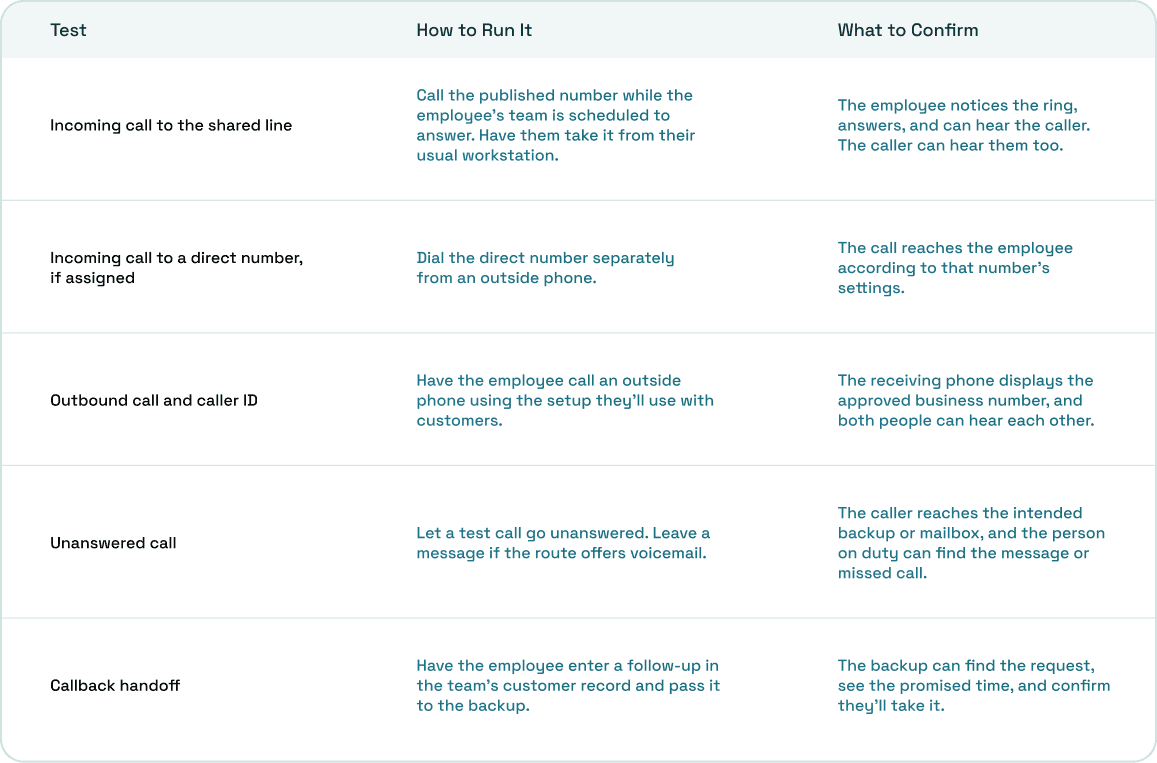
For each test, record what you expected, what happened, and who’ll check any issue. Keep the dialed number, time, and time zone with the result. If someone else has to repeat the call, they’ll know which part of the setup to test.
Common VoIP Onboarding Mistakes and How to Fix Them
There are a few common mistakes that are observed related to VoIP onboarding. To assess properly, start with what the employee or caller experienced. A quiet headset, an incorrect caller ID, and a call that reached another team each give you a different place to look.
Testing the Shared Line Outside the Employee’s Coverage Hours
In the Pacific scheduling example, a call at 1:45 p.m. Pacific should still reach the Eastern team. Call again at 2:05 p.m. Pacific, after the changeover. If a Pacific coworker receives the call and the new hire doesn’t, check team membership, availability, and the ringing strategy. A colleague may have answered before the call reached the new employee.
If the call never reaches the Pacific team, check the schedule and destination first. The guide to routing business calls for remote teams walks through testing a shift change and its backup route.
Reassigning a Shared Number When the Employee Needs Team Access
When a number already works for a team, add the employee to that team and test their access. Moving the number to one person can change how coworkers receive calls. If the role also needs a direct line, assign it separately and test both numbers.
Reading Caller ID From the Dialer Alone
Have the person on the outside phone read back the number their device shows. If it differs from the approved business number, have the admin check the employee’s calling setup and repeat the call. A coworker can cover customer callbacks while the employee takes the incoming calls they’ve already tested successfully.
Changing Several Settings Between Tests
Change one thing and repeat the same call. If the customer can hear the employee and the employee hears silence, start with the employee’s output device. If the call never rings, find out where the system sent it before swapping the headset or changing browser settings.
Assuming a Voicemail Alert Will Lead to a Callback
Show the employee where the message arrives and where a callback gets assigned. During practice, ask the backup to find the request and confirm when they’ll return it. A shift lead should be able to see who accepted the follow-up and what the customer was promised.
Decide What the Employee Can Handle on Their First Shift
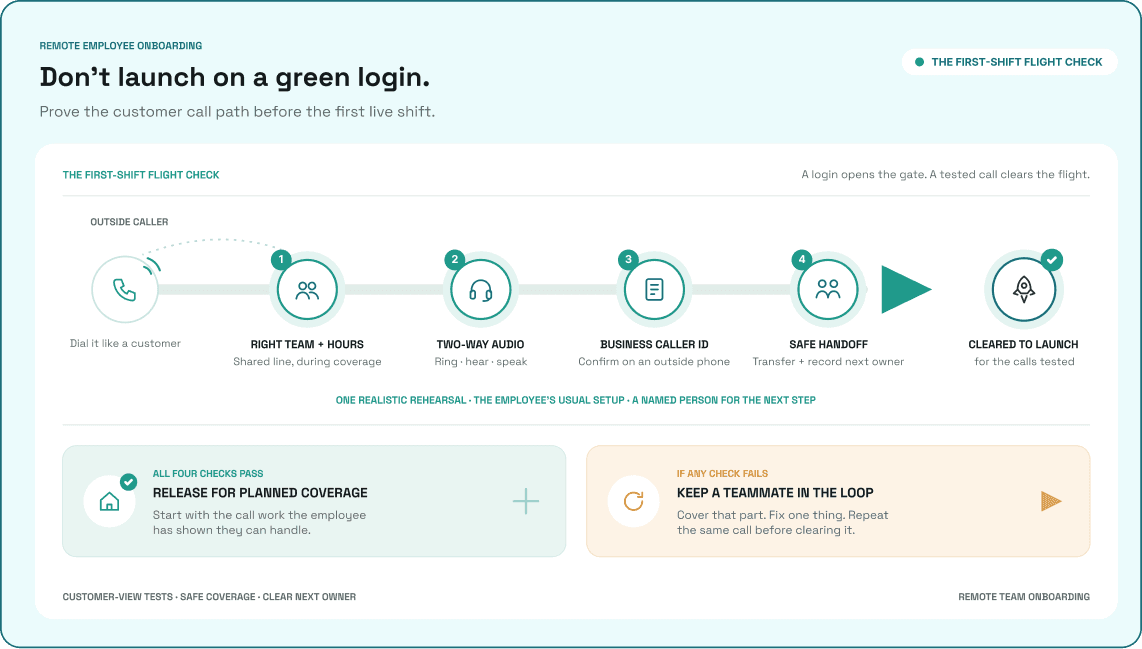
Review the tests against the calls the employee will take. If shared-line calls and transfers work, the employee can start there while a coworker covers callbacks until the outbound number is corrected. If the shared line still doesn’t reach the new hire, keep an experienced employee on it and schedule another test during the same coverage window.
Leave the shift lead a note they can use when assigning work.
- Ready for the shift: Shared-line calls and warm transfers passed.
- Temporary coverage: The duty lead will handle callbacks while the admin checks outbound caller ID.
- Retest: Call an outside phone at 2:15 p.m. Pacific tomorrow and confirm the number it displays.
After the first shift, ask the employee to talk you through one call that went as expected and one where they needed help. Find out what they had to look up or whom they had to contact. If they struggled to find the backup or record a callback, update the shift instructions while the example is fresh.
How to Onboard a Remote Employee in ArcSIP
If your main number already works in ArcSIP, you can give a new employee access to the team that handles it and have them practice through their browser. Use the first-shift plan to decide which permissions to assign and which calls to test.
- Invite the employee: An owner or admin opens Users, selects Add User, enters the employee’s work email, and chooses their role. Pending Invite means the employee still needs to accept. Unassigned means the account has been created and still needs a team or phone number assignment. The ArcSIP guide to adding a user shows those stages.
- Set up their calling access: For a shared number, open Teams, edit the existing team, and add the employee under Members. If they need a direct number, assign it through Phone Numbers. Review Team Call Access if a supervisor or admin will also receive or place calls on that team number. See how to assign ArcSIP numbers to users and teams.
- Have them place a call from their browser: ArcSIP lists modern versions of Chrome, Firefox, Safari, and Edge. Once the employee allows microphone access, they can open Workspace, select a calling line, choose the country code, and enter the number. The ArcSIP first-call guide shows the dialer controls. Use an outside phone to verify caller ID and two-way audio.
- Test the shared number and a handoff: Call during the employee’s coverage window, have them answer, and practice a warm transfer to the person who’ll help on shift. If the call goes somewhere unexpected, the admin can use Call Journey to review its route, transfers, and fallbacks.
For a business bringing several people onto one number, this gives each new hire a chance to learn the same call flow on their own workstation. Customers can keep using the published number as employees join the team and begin taking calls.
The Bottomline
A good first-shift plan should be short enough for an employee to refer to while someone is on the phone. Give them the line they’re covering, the number to use for callbacks, and the name of the person who can help. Then have them work through one practice call with the people they’ll rely on during the shift.
If a check fails, be specific about what needs another try and who’ll cover the work in the meantime. That way, the employee can start with the calls they’re ready to handle and the next shift knows what remains open.
- For incoming calls, record the number dialed, the time and time zone, and which team received it. Repeat the call during the same coverage window after making a change.
- For callbacks, have someone confirm the displayed number on an outside phone. Give a named coworker responsibility for callbacks if that check still needs work.
- For handoffs, have the backup find the customer’s request, read back the promised response time, and confirm they’ll take it.
If you’re bringing remote employees onto a shared business line, book an ArcSIP demo and bring one first-shift plan. You can walk through how the employee would join the team, answer from their browser, and hand a call to the person who can help.