



An employee who handles customer requests from a laptop can use that same computer to make and receive calls on the company phone system. With browser-based calling, they sign in to a web dialer and use their usual headset. Customers can keep calling the business number they already know.
The setup can feel ready after one successful call. Then the employee returns to their usual work and misses a call while reading a ticket in another tab. The call may have gone to a different team, or it may have reached the employee without a ring they could hear.
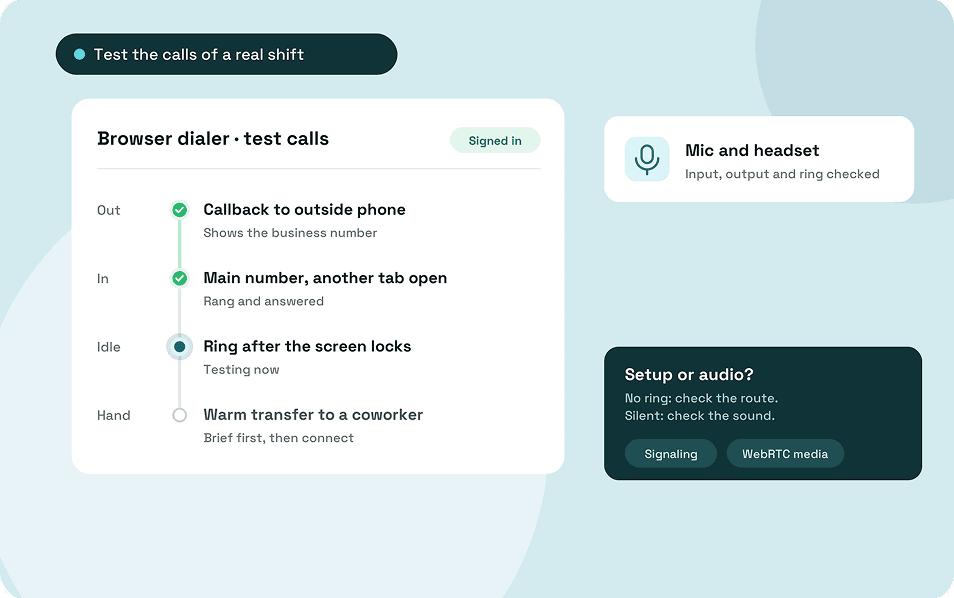
Before putting a browser phone into regular use, try the calls your team handles on an ordinary shift. A callback, an incoming call to the main number, and a transfer will tell you more about the setup than a single call between coworkers.
Key Takeaways
- A browser softphone is the dialer employees use. WebRTC carries audio on the browser connection, and the business phone system handles the number and routing.
- Test calls in both directions. Placing a call and receiving one on the main business number exercise different parts of the setup.
- Check the microphone, speaker, and incoming ring separately. They can use different settings, especially after someone changes headsets or disconnects a dock.
- Try the calls each employee will handle, including transfers, outbound caller ID, and missed-call follow-up where relevant.
- WebRTC encrypts the media on its connection. Calls to regular phone numbers also use a carrier connection, so check with your provider if you need to know how that part is protected.
What Is Browser-Based Calling?
Browser-based calling lets someone make and receive phone calls through a web application. For business use, the employee signs in to the company’s account and uses an on-screen dialer, often called a browser phone or browser softphone. The browser uses the computer’s microphone and speakers or headset.
The business phone system still manages the phone numbers, business hours, and incoming call routes. A scheduling coordinator might answer calls to a shared number, while a salesperson uses a direct line for callbacks. Both can work from their browsers if the phone system is set up for those roles.
The customer can dial the business number from a regular phone. On the employee’s side, the browser takes the place of the handset for the calls they handle at their computer.
How WebRTC Connects a Browser to a Business Phone Call
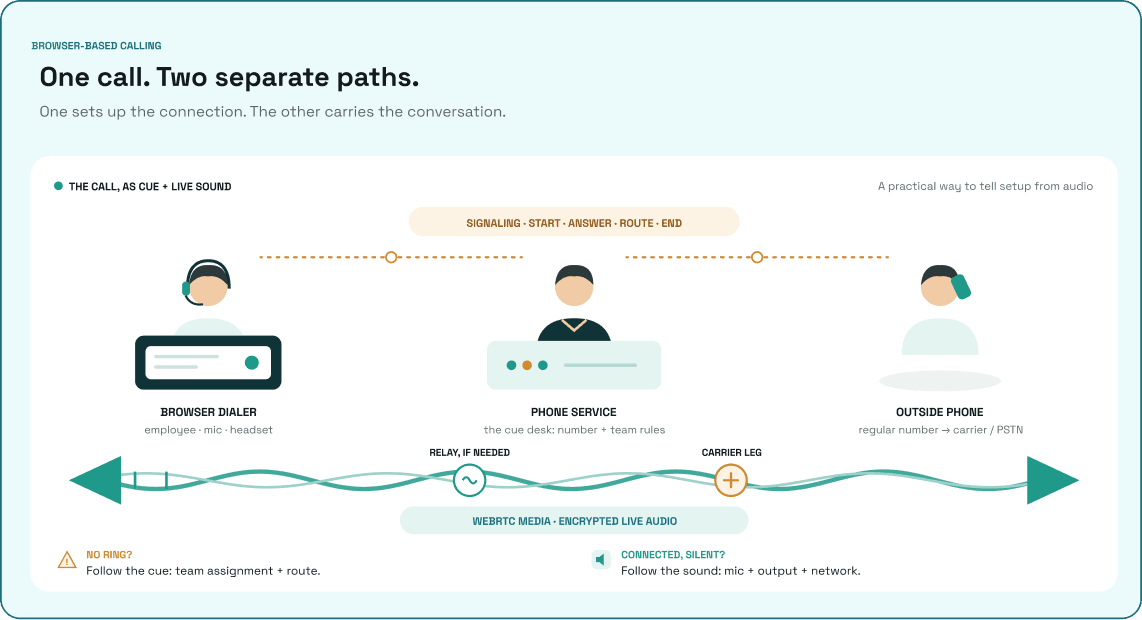
It helps to distinguish signaling from audio. Signaling is the information the application and phone service exchange to start, answer, and end a call. The audio is the conversation itself. If a call never rings, you’ll usually start by looking at where it was sent. If it connects and one person hears silence, you’ll start with the audio.
When an Employee Calls From the Browser
Say a Pacific scheduling specialist is returning a customer’s call. The specialist opens the browser dialer and enters the customer’s number. The application asks the phone provider to set up the call. For an ordinary telephone number, the provider connects it through its carrier network to the public switched telephone network, or PSTN.
When the customer answers, the browser takes audio from the employee’s microphone and plays the audio it receives through the selected output device. The customer sees the number presented as outbound caller ID. If the company expects customers to call back on a particular business number, someone should check what an outside phone actually displays.
When a Customer Calls the Business Number
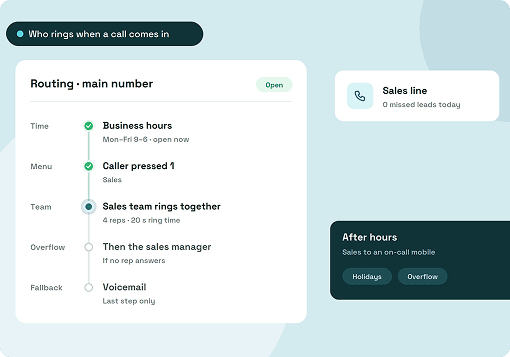
The call first reaches the provider that handles the business number. The phone system checks the rules for that number, such as business hours, team assignment, and employee availability. It then offers the call to the intended employee or team. To answer in the browser, an eligible employee needs a session that’s ready to receive the call.
This explains why someone can dial out successfully and still miss calls to the main line. If the employee can receive a call on their direct number but the shared number never rings for them, check whether they’re assigned to that team and whether the call arrives during their coverage hours. The guide to routing business calls for remote teams covers how to test that route and what happens when nobody answers.
Where VoIP, SIP, and the Softphone Fit
VoIP means voice over Internet Protocol. It describes calls that carry voice over an IP network. A browser phone and a compatible desk phone can both use VoIP. WebRTC gives a web application the ability to send and receive real-time audio. The softphone is the interface employees see, with the dialer and controls they use during a call.
SIP is one signaling protocol a provider may use between systems. The web application and the service handle the signaling needed to set up their WebRTC connection. Depending on the network, the audio may travel through a relay. The WebRTC project’s guide to peer connections explains how applications exchange connection details and establish a path for media.
What Employees Need Before Taking Calls in a Browser
Set up the browser phone on the computer and network the employee will use for work. A successful test from a colleague’s laptop can confirm that the business number works, while leaving questions about the new employee’s headset, permissions, and shared-line access.
- A supported browser and the right workspace. Check the provider’s browser requirements. Have the employee sign in and confirm which line they’ll use to call out and which numbers or teams they should receive calls from.
- Microphone permission for the dialer. Check permission for the specific website, then check the operating system’s microphone settings if the dialer still can’t access the device. On a managed computer, some settings may be controlled by IT. Chrome’s guide to microphone permissions covers site access and managed-browser settings.
- A headset or speaker they can hear clearly. Check the microphone input and the audio output. If the app has a separate setting for incoming rings, check that as well. Repeat those checks after reconnecting a dock or switching headsets.
- The network they normally work on. Test from the employee’s usual location, using the company VPN if their work requires it. If audio problems only happen on one network, that gives IT a specific condition to investigate.
If you’re onboarding a remote employee to the business phone system, confirm who’s responsible for account and team-line access before the test. The employee can check their audio setup, while the person managing the phone system can verify that the number is set up to reach them.
Test the Calls Your Team Will Actually Handle
Begin with one outbound call and one incoming call from outside the business. Have both people speak so you can check the audio in each direction. Then give the employee a scenario that matches what they’ll do on shift.
- For someone returning customer calls, have them call an outside phone and confirm the number displayed. If they routinely call businesses with phone menus, have them try the dial pad on a test menu.
- For someone covering the main number, call it from outside the business and see whether they can answer while working in another tab. Test their direct number separately if they have one.
- For someone who hands calls to another team, try a warm transfer. Have the employee explain the request to the receiving colleague before connecting the caller. If the team uses hold and resume, include that in the same practice call.
- For someone responsible for missed calls, let a test call go unanswered. Check where it ends up, who can see the voicemail or missed call, and where they record that a callback is due.
It’s also worth testing what happens after the dialer has been idle for a while. Check another tab, a locked screen, and a computer that has just woken from sleep as separate conditions. Browsers can manage inactive pages differently. Use the behavior you see on your actual setup to decide when an employee should use a backup.
How to Troubleshoot Browser Calling Problems
Start with what the employee and the caller experienced. A missing ring, a connected call with one-way audio, and a call that breaks up all point you toward different checks.
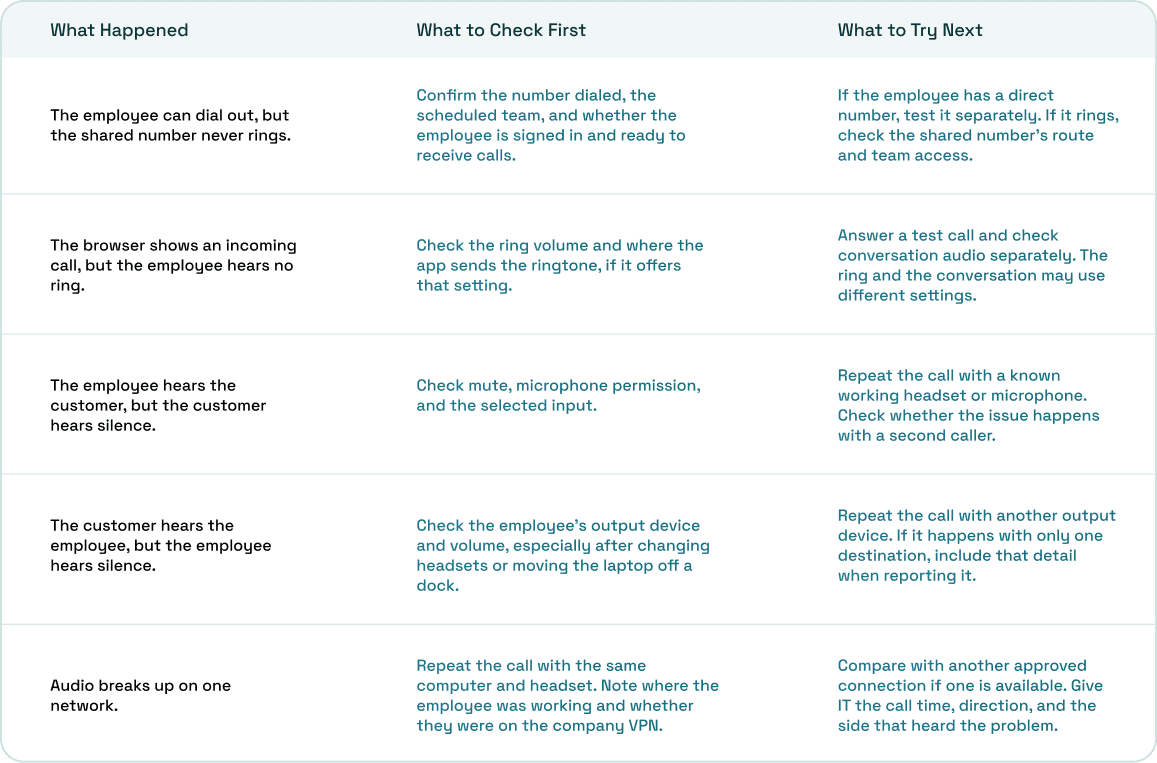
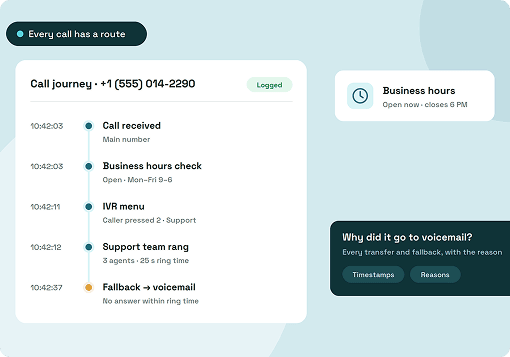
If your phone system has a call record, look up the time and number before making changes. If the system sent the call somewhere else, start with routing.
If it shows the call reached the employee and was answered, the browser, audio devices, or connection give you a better place to look. When you ask for help, include the time zone and call ID if your provider makes it available.
What WebRTC Encryption Covers
WebRTC encrypts the media it carries over the WebRTC connection. The IETF’s WebRTC security architecture describes how implementations protect that media.
When a browser call continues to a regular phone number, it also travels through the provider and carrier network. If you need to know how the entire call path is protected, ask the provider which connections use encryption.
For recorded calls, check how the provider stores recordings and who on your team can open them. Those are separate questions from how the browser protects the live audio.
When a Browser Phone Makes Sense for Your Team
A browser phone can suit employees who already spend most of their shift at a computer and need to take calls alongside a CRM or help desk. For some roles, an installed desktop app or a physical phone may be easier to use. The difference often shows up when someone steps away, changes devices, or needs a particular call control.
- Browser phone. Try it for staff who work from a laptop and can stay signed in to the calling workspace. Check incoming rings, caller ID, and the features they’ll use, such as transfers or access to voicemail.
- Installed desktop app. Consider it if your team prefers a separate calling window or IT manages applications centrally. Test how it handles notifications, sign-in, and audio devices on the computers staff already use.
- Desk phone. It may suit a shared reception desk or a location where the phone needs to be available independently of an employee’s browser session. Check what happens when different people cover that station.
- Mobile option. For employees who spend time at customer sites, verify what the provider supports and test it where people actually work. Include calls made while moving between Wi-Fi and mobile data if that happens during the day.
The device is one part of the decision. Someone still needs to know which calls they’re covering, how to bring a coworker into the conversation, and where to record a callback. Our guide to remote team communication covers how to handle those steps across shifts.
How Browser-Based Calling Works in ArcSIP
ArcSIP’s remote communication platform includes a WebRTC softphone for business calls. ArcSIP lists modern versions of Chrome, Firefox, Safari, and Edge as supported. Its product documentation explains that the browser exchanges connection details with ArcSIP’s media server and that calls to regular telephone numbers go through its carrier network.
To place a call, sign in, allow microphone access, and open Workspace. Select a calling line in the dialer, choose the country code, and enter the number. The ArcSIP first-call guide shows where to find those controls.
For incoming calls, confirm that the number is assigned to the right user or team, then call it from an outside phone. If the number is still being set up, the ArcSIP business phone system installation guide covers assignments, business hours, and unanswered-call routes.
Once the main line rings as expected, give employees a chance to practice a warm transfer and see where they’ll find the context for a callback.
Wrapping Up
Before giving someone a shift on the main number, ask them to take a few practice calls from the place they’ll actually work. Sit with them long enough to see what happens when they answer, look up the customer, and bring in a coworker. Those are the parts they’ll have to do together once the line gets busy.
Keep the results where the employee and their manager can find them. A short note with the workstation, headset, number tested, and any known fallback is enough to make a later problem easier to reproduce.
- For a callback, check that both people can hear each other and that the customer sees the business number you expect.
- For an incoming call, dial the number customers actually use while the employee is working in another tab. Check where the call goes if they’re unavailable.
- For a handoff, have the employee brief a coworker, transfer the call, and show where they would record a follow-up if the coworker couldn’t take it.
If you’re looking at browser calling for your team, bring those three scenarios to an ArcSIP demo. You can use the business number and handoffs your employees already work with to see how the browser setup would fit into their day.