



IVR (interactive voice response) is the automated menu that answers a business call, asks the caller to press a key or say what they need, and then connects them to the right person or gives them the answer. For a business, it sorts every call before anyone on the team picks up.
How well it works comes down to the menu you build: which options it offers, where each one goes, and what happens when a caller does nothing or presses the wrong key.
Key takeaways
- IVR answers and routes calls, and some versions also answer simple questions without a person.
- Keypad menus handle routing, while speech and AI menus need more setup and access to your other systems.
- Every option needs a destination and a fallback for when nobody answers.
- Plan for callers who press nothing or the wrong key.
- Test every path before launch and again after any change.
What is IVR?
IVR is the automated system behind "press 1 for sales." It answers incoming calls, plays a set of choices and acts on the caller's answer.
You'll also see it called a phone tree, phone menu, auto attendant or virtual receptionist. Each of these names describes a recorded menu that sits between the caller and your team.
An IVR does two jobs. It routes callers to the right person or team, and in more advanced setups it handles self-service, such as reading out opening hours, an order status or an account balance with nobody on the line.
Phone systems call the routing-only version an auto attendant, while "IVR" also covers menus that look up information for the caller. Providers use the two terms loosely, so check which one a plan includes before you compare prices.
How IVR works
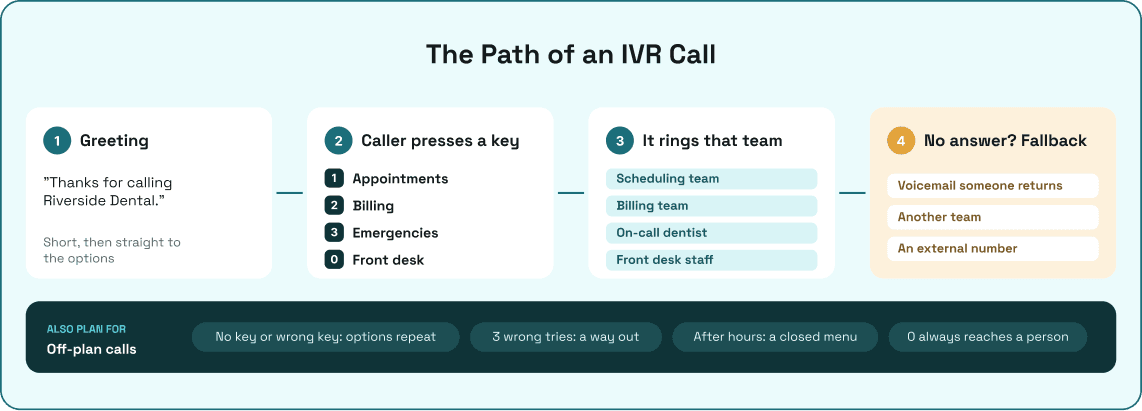
Every IVR call moves through the same five steps, whichever system runs it. The settings at each step decide whether the caller reaches someone or hangs up.
- Greeting: the IVR answers and plays a short welcome with the business name.
- Menu: it lists the options, such as sales, support and billing.
- Input: the caller presses a key or, on speech-enabled systems, says what they want.
- Action: the IVR connects the call to a team or person, plays information, or opens a submenu.
- Fallback: if nobody answers, the caller does nothing, or the business is closed, the call goes to voicemail, another team, an external number or a closing message.
Each key press sends a tone, called DTMF, that the system reads as a number. On a cloud phone system, the menu runs online alongside your numbers and business hours, so there's no hardware to install and you change it from a web dashboard.
Types of IVR and which one you need
IVR systems differ in how callers answer and how much the system can do without a person. Each step up adds setup work and needs more of your other systems connected.
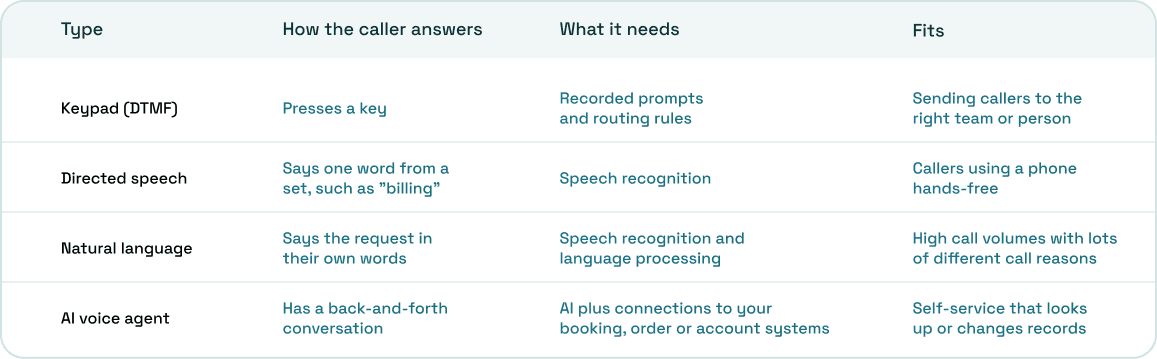
Speech recognition can struggle with background noise and strong accents, so a speech menu needs a keypad option as a backup. Self-service also depends on access to the system that holds the answer; an IVR can't read out an order status unless it's connected to your order records.
If your goal is getting callers to the right team, a keypad menu does the job. Move up only when your call history shows callers asking the same lookup questions day after day.
Does your business need an IVR?
An IVR earns its place when callers want different things from different people. If one team takes every call, a menu only adds a step before the caller reaches them.
These signs say a menu will help:
- Calls split across sales, support, billing or other teams.
- Someone at the front desk spends part of the day transferring calls by hand.
- Callers keep asking the same simple questions, such as your hours or address.
- After-hours callers need a message, a voicemail or an on-call number.
- Callers need to choose a language before they reach someone.
When you can skip it
A business that gets a few calls a day, all handled by the same people, doesn't need a menu. Ring the team directly and send unanswered calls to a voicemail someone returns the same day.
If calls start to overlap, the fix is a call queue, not a menu. Our guide on how call queues work explains when to add one.
How to set up an IVR menu
Building the menu takes less time than deciding what goes in it. Work from your call history, not your org chart.
1. List why people call
Pull a few weeks of call history and group the calls by reason. The biggest groups become your menu options, and the small ones can share a "speak to someone" option.
2. Choose the options and their order
Put the most common reason first, so the biggest group of callers hears their option straight away. Two of the guides we read cap menus at two levels, so keep submenus to one layer below the main menu.
3. Give every option a destination
Each option needs somewhere to go: a team, a person, a recorded message or a submenu. Add a "speak to someone" option to every level, so callers who don't fit any choice still reach a person.
4. Write the script
Say the department before the key ("For billing, press 2"), so callers hear what they want before the number. Name teams and roles instead of staff, because a prompt that says "press 3 for Sarah" has to be re-recorded when Sarah leaves.
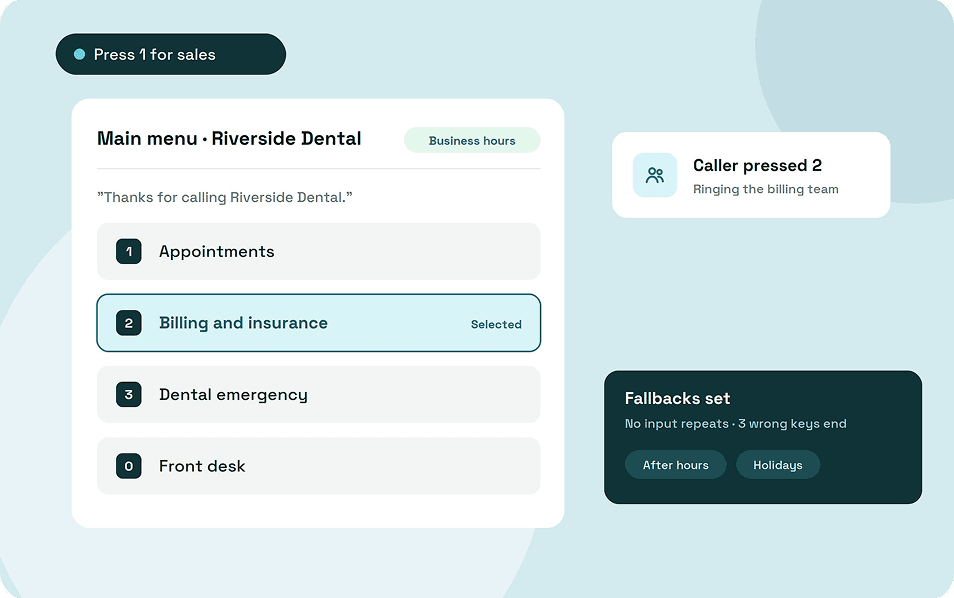
Here's a daytime menu for a dental clinic:
"Thanks for calling Riverside Dental. To book or change an appointment, press 1. For billing and insurance, press 2.
If you're in pain or have a dental emergency, press 3. To speak to the front desk, press 0."
5. Decide what happens when things go wrong
A menu needs an answer for three problems: a caller who presses nothing, a caller who presses a wrong key, and an option whose team doesn't pick up. Record a short prompt for the first two that repeats the choices, and send unanswered options to voicemail, another team or an external number.
Set a limit on wrong attempts as well. A caller who has pressed the wrong key three times needs a way out, not a fourth loop.
6. Build the after-hours and holiday versions
The after-hours menu keeps the same structure but changes where each option goes. Tell callers your hours, offer voicemail or an on-call number for urgent calls, and set special dates for public holidays.
7. Record and upload the audio
Record every prompt in the same voice, in a quiet room, at a steady pace. Record the no-input, wrong-key and after-hours messages in the same session, so the whole menu sounds like one business.
8. Test every path
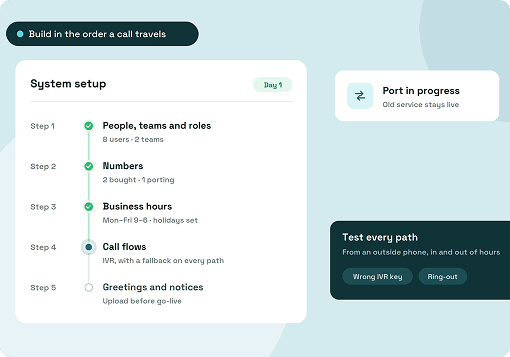
Call your own number from an outside phone and press every option during business hours, then again after hours. Try pressing nothing, pressing a wrong key three times and choosing an option whose team won't answer.
Finish by checking that the route to a person works from every level of the menu.
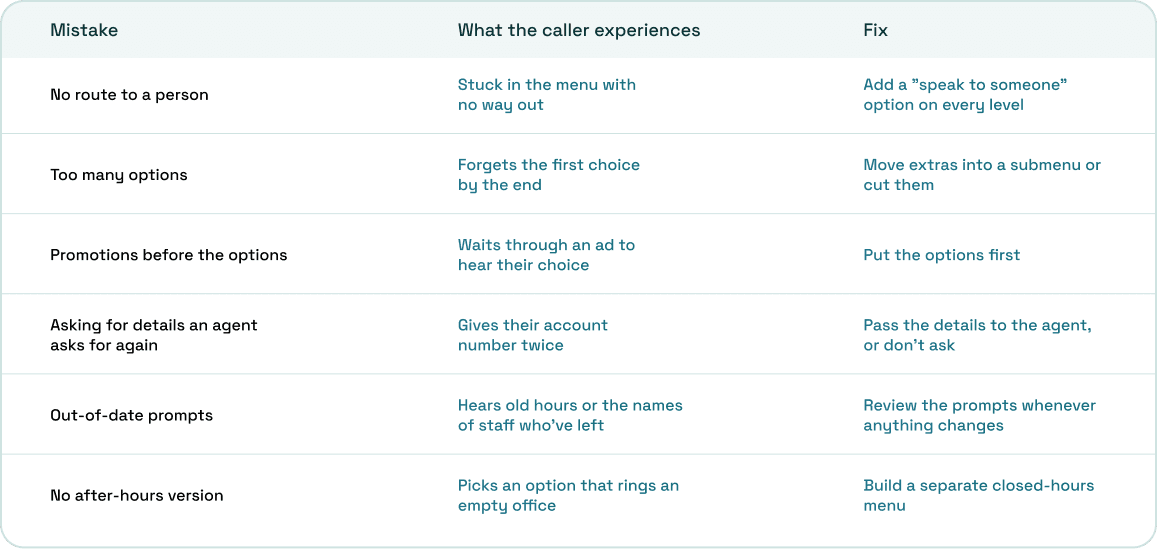
Menu mistakes that make callers hang up
These are the setup choices that leave callers stuck in a phone menu. Each one has a fix you can make in an afternoon.
How to tell if your IVR is working
A menu that routes calls well shows it in a few numbers. Check them in the first weeks after launch and after every change to the menu.
Start with calls that end inside the menu without reaching anyone, because those are callers who gave up. Then look at how often callers press nothing or the wrong key, which points to a confusing prompt or a missing option.
Watch transfers after the call is answered. If the person who picks up passes the call on, the menu sent the caller to the wrong place and the option wording needs work.
Repeat calls matter too. A caller who leaves the menu and calls back an hour later wasn't helped, even if the menu kept the first call away from your team.
IVR in ArcSIP
ArcSIP includes a multi-level IVR in its business phone plan, set up as the call flow on any phone number next to its business hours. It's a keypad menu built to get callers to the right team or person.
- Menus and submenus: each key rings a team or a user, or opens a submenu.
- Fallbacks per option: if the team or agent is unavailable, doesn't answer, or it's after hours, the call goes to voicemail, forwards to a user, team or external number, or ends.
- Wrong-input handling: a "no input" message plays when the caller presses nothing, an error message plays after an invalid key, and the call ends after three wrong inputs.
- Hours and holidays: business hours, after-hours rules and special dates are set per number.
- Audio library: upload prompts once and see which call flows use each file.
- Visibility: the live dashboard shows how many calls are in the IVR, and Call Journey shows every step a call took, including fallbacks.
ArcSIP Unlimited costs $29 per user per month with a minimum of three users, and includes the IVR, reusable call flow templates and unlimited call concurrency. You can try it free for seven days without a credit card.
Start with a short menu and change it as calls change
Your first menu doesn't need every option you can think of. It needs the reasons people call, a destination for each one and a fallback for when nobody answers.
Build it from your call history, test every path, and check the numbers after the first few weeks. Review the menu whenever your hours, staff or services change, because a menu that was right in January can send callers to the wrong place by June.